password vault manual
Local Firefox Password Backup & GPG Vault Manual
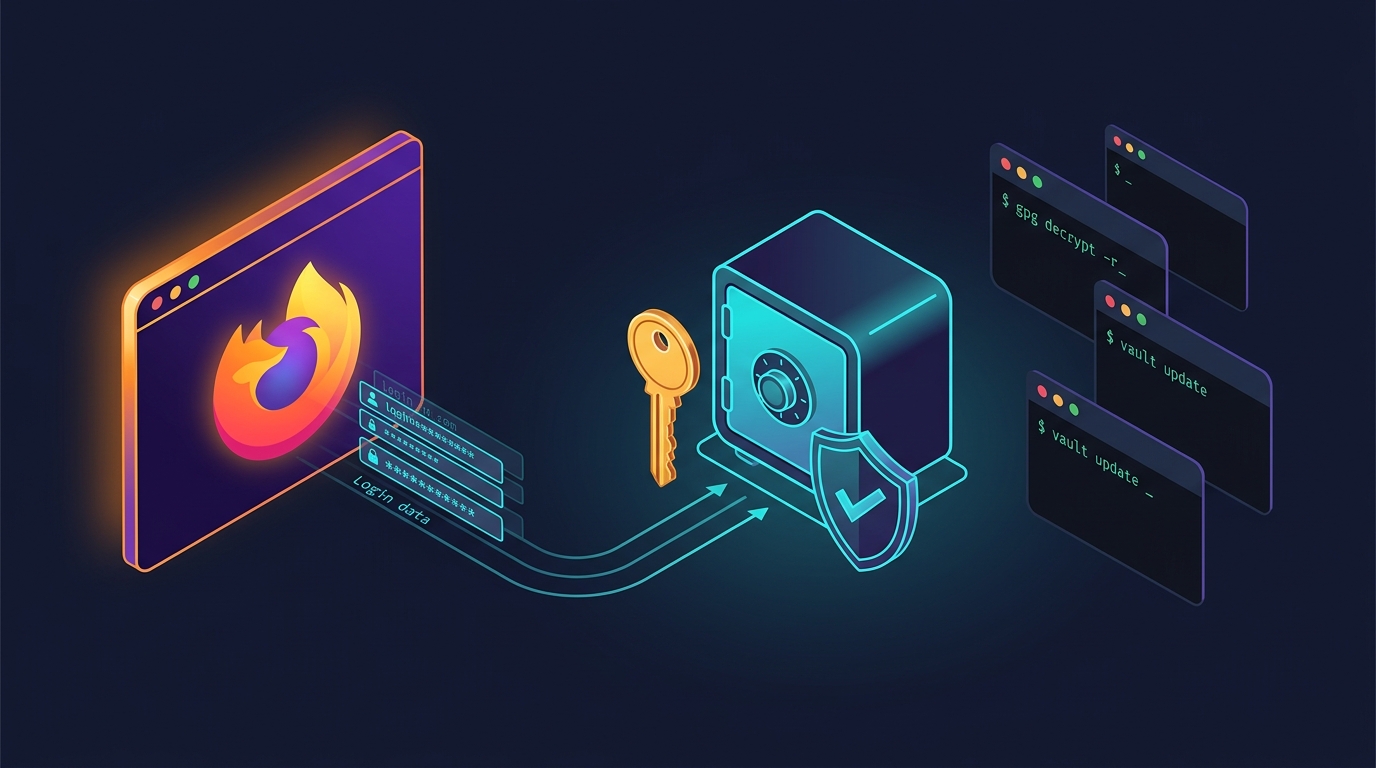
This guide documents how to manage a local, passphrase-protected password vault on Linux using asymmetric GPG encryption and the manage-passwords.py utility.
1. Security Architecture
- Private Key Passphrase Protection: Passwords are encrypted against your GPG public key. Decryption requires access to your GPG private key unlocked with your secret passphrase.
- In-Memory Operations: Decryption and re-encryption happen strictly in memory through subprocess pipes. Unencrypted password data is never saved to temporary disk files.
- Atomic File Writes: Re-encrypted updates are written to an atomic temporary file before replacing the target vault to prevent data corruption.
- Default Storage Location:
~/.local/share/password-vault/vault.json.gpg
2. Prerequisites: GPG Keypair
If you do not already have a GPG key:
gpg --full-generate-key- Select ECC (sign and encrypt) or RSA.
- Specify your name and email (e.g.,
[email protected]). - Set a strong passphrase. This passphrase acts as your master password for all vault operations.
To inspect existing secret keys:
gpg --list-secret-keys --keyid-format=LONG3. Exporting Passwords from Firefox
- Open Firefox and go to
about:logins. - Click the three dots menu (⋮) in the upper-right corner.
- Select Export Logins… and confirm.
- Save the export file (e.g.,
~/firefox-logins.csv).
4. Vault Setup & Import
Initialize the Vault
Link the vault to your GPG recipient key:
path-to/manage-passwords.py init -r "[email protected]"Import from Firefox
Import the CSV and securely wipe the plain-text file from disk using --shred:
path-to/manage-passwords.py import-firefox ~/firefox-logins.csv --shred5. Daily Usage
Search / Find Passwords
Search by website, domain name, or username. Passwords are masked by default:
# Masked output
path-to/manage-passwords.py find github

# Reveal password in plain text (-s / --show-password)
path-to/manage-passwords.py find github -s
Note: GPG will prompt for your private key passphrase via your system’s pinentry dialog if it is not already cached by gpg-agent.
Update or Add a Password
Update an existing entry or create a new one:
# Interactive password prompt (input hidden from screen)
path-to/manage-passwords.py update github.com -u myuser

# Direct password assignment
path-to/manage-passwords.py update github.com -u myuser -p "NewSecurePass#2026"
List All Stored Logins
List all domains and accounts without showing passwords:
path-to/manage-passwords.py listDelete an Entry
# Delete a specific account under a domain
path-to/manage-passwords.py delete github.com -u myuser

# Delete all accounts under a domain
path-to/manage-passwords.py delete github.com
6. Backups & Archival
Because the vault is a single GPG-encrypted file (~/.local/share/password-vault/vault.json.gpg), you can safely copy or sync it anywhere (e.g., cloud storage, external drive, rsync):
# Example backup to external drive or backup directory
rsync -av ~/.local/share/password-vault/vault.json.gpg /path/to/backup/drive/
Even if the backup file is exposed, it cannot be read without your private GPG key and its passphrase.
7. CLI Reference Summary
| Command | Description |
|---|---|
init -r <key-id> |
Initialize vault with GPG recipient |
import-firefox <file.csv> [--shred] |
Ingest Firefox export and securely erase CSV |
find <query> [-s] |
Search credentials (masked or revealed) |
update <site> [-u user] [-p pass] |
Update or create password entry |
list |
Print overview of all saved sites/users |
delete <site> [-u user] |
Remove a login or an entire site |